Allow about five minutes. Keep LeadDecide Settings open in one tab and CTM in another. You will need CTM settings access and the complete inbound webhook URL LeadDecide showed when the connection was saved.
Before you begin
Treat the full webhook URL like a password. It contains the secret that routes activity to one LeadDecide workspace. Do not put the real URL in screenshots, analytics, chat, or support tickets, and do not use the example below as your callback URL.
Example format only: https://app.leaddecide.com/api/inbound/ctm?organization=your-workspace&webhook_key=YOUR_SECRET_KEY&event=end
LeadDecide shows one URL per CTM trigger. They share the same secret and differ only in the event value at the end, which is how LeadDecide tells the End webhook apart from the follow-up webhooks in step 6. Paste each URL exactly as shown. A URL saved before the follow-up webhooks existed has no eventvalue; it keeps working and is recorded as the End webhook, so an existing End webhook does not need to change.
1. Open the webhook builder in CTM
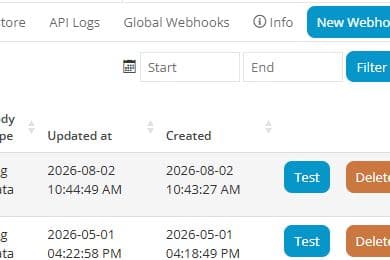
In CTM, go to Settings > Integrations > Webhooks. Select New Webhook to open a blank webhook configuration.
2. Name it and use the End trigger
On the General tab, use a recognizable name such as LeadDecide Inbound. Set Trigger to At the end of a call/form/chat, once all data has been captured [end]. Leave Disabled off so the webhook can run after it is saved.
The End webhook is the only call-phase webhook LeadDecide needs for calls, forms, and chats. Do not also create start, ringing, answered, or delayed-end webhooks for the same activity unless you deliberately want repeated refreshes. The follow-up webhooks in step 6 use different triggers (sale, manual_update, transcribed) and are the only other webhooks LeadDecide expects.
CTM finishes transcribing a call a few minutes after the End webhook fires, so the transcript is usually not in that first payload. The transcribed webhook in step 6 delivers it as soon as CTM is done, and LeadDecide also asks CTM for the transcript again automatically once the call is a few minutes old (and whenever a reviewer presses Refresh AI) as a safety net. Either way it is stored on the lead and the AI review re-runs with it.
If your CTM account also logs outbound calls and LeadDecide should receive only inbound calls, use a CTM Trigger with Direction set to inbound and Run Webhook, then select Through a trigger [route] here instead of End.

3. Configure the callback and JSON body
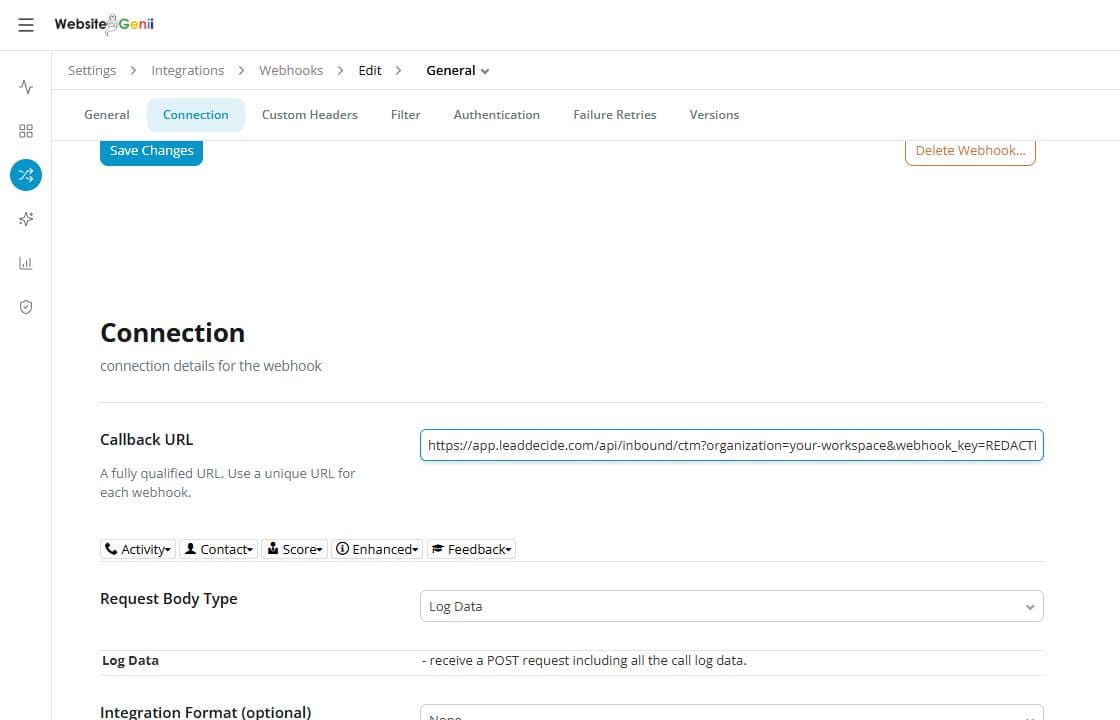
Open the Connection tab and paste the complete URL generated by LeadDecide into Callback URL. Preserve every character, including every query parameter. Set the request method to POST, choose Log Data as the request body type, and leave Integration Format set to None. CTM sends Log Data as JSON without a custom template.
Leave integration or custom formatting, Custom Headers, Authentication, and Filter blank unless your agency has a specific reason to use them. The callback URL already contains the LeadDecide credential, and CTM sends its native signature headers automatically.
4. Save, then test once
Select Save Changes. Return to the Webhooks list and select Testonce for the new webhook. CTM's Test action sends the latest real call in the account, so that call may appear for the first time or refresh in LeadDecide. Do not keep selecting Test while you wait.
5. Verify CTM and LeadDecide
In CTM, open API Logs and inspect the test delivery. A response status of 200 or 201 confirms LeadDecide accepted it: 201 means the activity was created, while 200 usually means an existing activity was refreshed. Then open the LeadDecide inbox and confirm the latest real call appears in the intended workspace.
If the test fails, check the full callback URL first, followed by POST, Log Data, JSON, and the End trigger. A copied URL with a missing or outdated secret will not authenticate.
6. Add the follow-up webhooks (Score panel, Contact panel, transcripts)
The End webhook delivers each activity once, when it finishes. Scoring in the Score panel, edits in the Contact panel, and the finished transcript all happen later, so CTM needs three more webhooks to send them. In LeadDecide Settings, open the CTM connection and select Show inbound webhook URLs. Each URL shares the same secret and ends with an event value that names its trigger. Create each webhook exactly like the first one, with the same Connection settings, POST, Log Data, and Integration Format None, changing only the name, the trigger, and the callback URL.
Score-panel changes. Name it LeadDecide Score and set Trigger to Sale is updated for an activity [sale]. Paste the URL that ends in event=sale: https://app.leaddecide.com/api/inbound/ctm?organization=your-workspace&webhook_key=YOUR_SECRET_KEY&event=sale. CTM fires it whenever someone changes the Reporting Tag, stars, Converted, Converted Amount, or a custom Score field on an activity, so those edits reach LeadDecide without an import.
Contact-panel changes. Name it LeadDecide Contact and set Trigger to Contact panel is updated by a user [manual_update]. Paste the URL that ends in event=manual_update: https://app.leaddecide.com/api/inbound/ctm?organization=your-workspace&webhook_key=YOUR_SECRET_KEY&event=manual_update. CTM fires it when a person edits the caller details, notes, tags, or custom fields in the Contact panel.
Transcripts (optional, two parts).CTM's webhook builder has no transcription trigger of its own, so this one is fired by a CTM Trigger. First create the webhook: name it LeadDecide Transcript, set Trigger to Through a trigger [route], and paste the URL that ends in event=transcribed: https://app.leaddecide.com/api/inbound/ctm?organization=your-workspace&webhook_key=YOUR_SECRET_KEY&event=transcribed. Then open Automation → Triggers → New Trigger, set its trigger to Transcription is ready, add a workflow whose action is Run Webhook, and choose the LeadDecide Transcript webhook. When it arrives for a call LeadDecide already has, LeadDecide fetches the finished transcript from CTM right away and re-runs the AI review with it. Skipping this part is fine: the scheduled re-check in step 2 and the daily reconcile still bring transcripts in a few minutes later.
To test each one, save it and select Test once, then check API Logs for a 200 or 201 response exactly as in step 5. Back in LeadDecide Settings, the CTM connection lists Score-panel changes, Contact-panel changes, and Transcripts with the time each trigger last delivered, or never until its first delivery. For a real end-to-end check, change the stars on a recent activity or add a note in its Contact panel and confirm the lead updates in LeadDecide.
Optional: receive inbound text messages
CTM handles inbound text messages as a separate event. If you need them in LeadDecide, create a second webhook with the same callback and connection settings, but choose the inbound_text trigger. Keep the original End webhook for calls, forms, and chats. Do not add more call-phase webhooks, and do not use outbound_text for inbound lead capture.
Update CTM whenever the provider is reconnected
The webhook secret rotates whenever CTM is reconnected in LeadDecide, so the callback URL must be replaced in every related CTM webhook: the End webhook, the sale, manual_update, and transcribed follow-up webhooks from step 6, and the optional inbound_text webhook. Use Show inbound webhook URLs on the connection to copy the new set. Save before testing again; the old URL is no longer the active credential.